Detection Settings
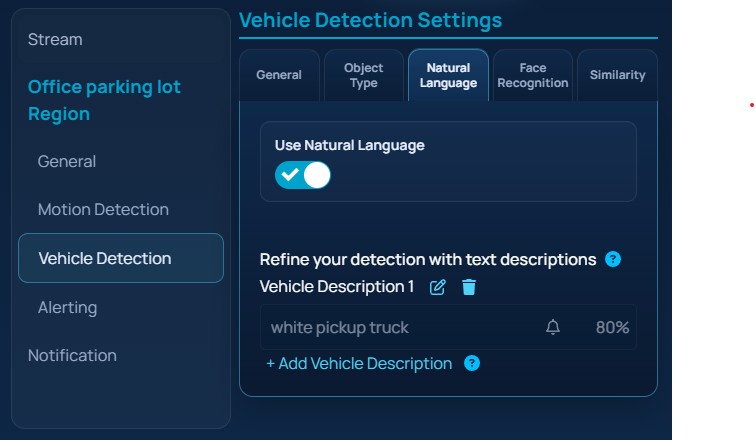
Detection settings are configured per region. The editor uses tabs so you can switch between general sizing, object type, natural language, face recognition, and similarity workflows without leaving the selected region.
The screenshot below shows the detection settings tabs for a region.
Motion detection
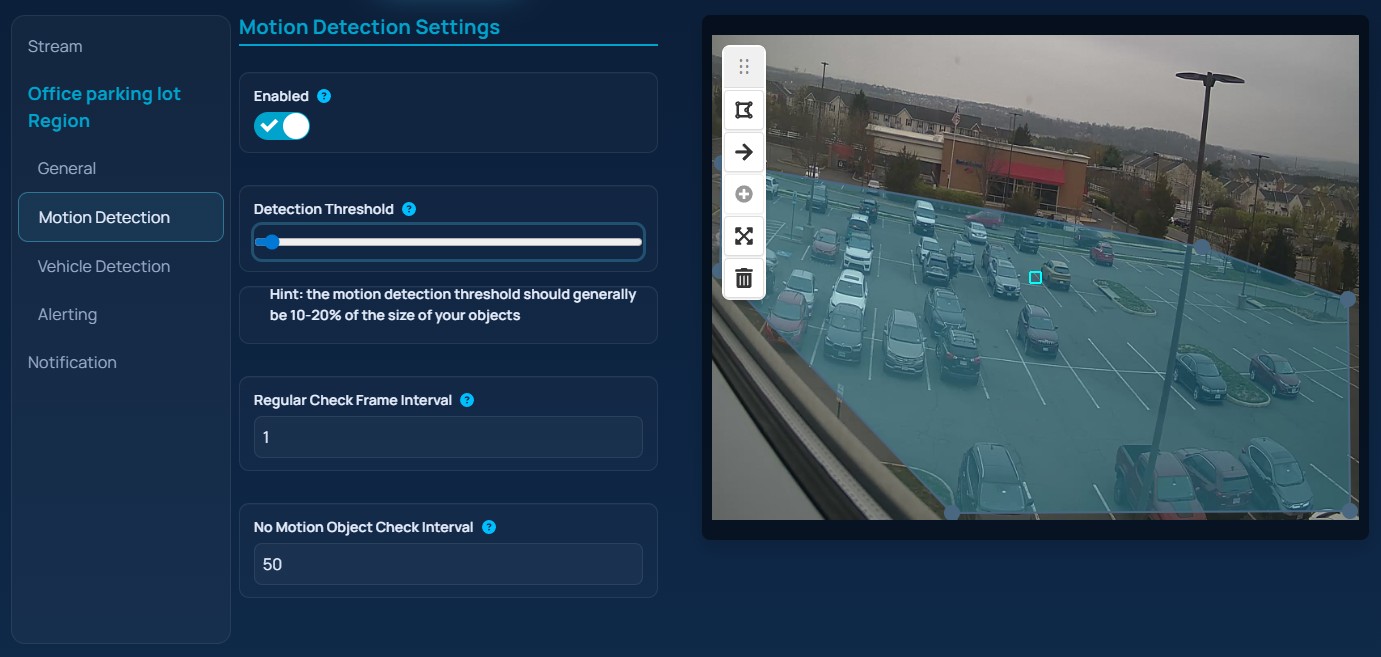
Each video region includes a Motion Detection page with:
EnabledDetection ThresholdRegular Check Frame IntervalNo Motion Object Check Interval
Detection Threshold is controlled with a slider, and the UI draws a size hint on the preview so you can tune the threshold against the approximate size of the objects you expect to see.
The screenshot below shows the motion detection settings and the threshold hint overlay.
Detection modes
The Detection page is organized into these tabs:
General: shared object-size control for the active detection modeObject Type: optional class selection before refining the queryNatural Language: text prompts that further describe what should be detectedFace Recognition: person or group matchingSimilarity: image-based matching
Object type and size
If Use Object Type Detection is enabled, you can select one of the supported classes:
PersonVehicleAnimalBagSomething Else
The object-size slider is always important because it helps EyesOnIt focus on the expected scale of the target.
Natural language
If Use Natural Language is enabled, you can add one or more descriptions. Each description supports:
- description text
This is a Background DescriptionAlertfor video workflowsAlert Thresholdfor video workflows
Background descriptions stay in the model context but do not generate alerts directly.
Face recognition
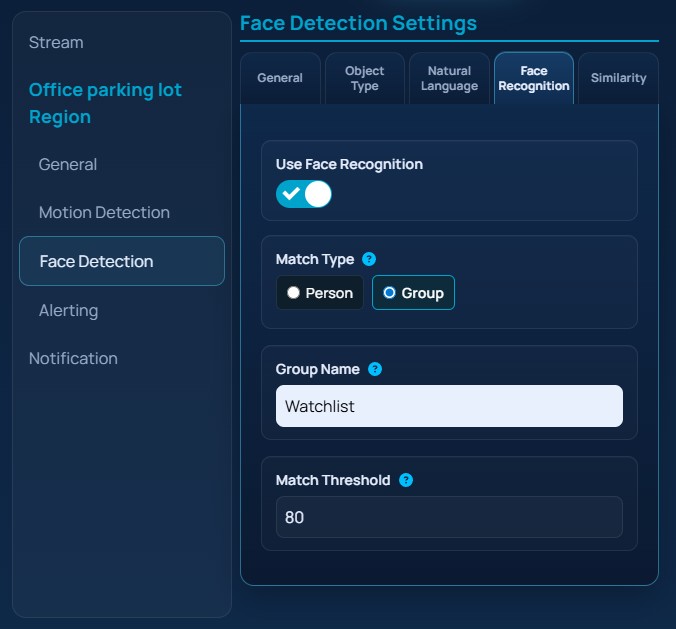
If Use Face Recognition is enabled, configure:
Match Type:PersonorGroup- a person or group name from the autocomplete suggestions
Match Threshold
The UI queries the server for matching names while you type, so the safest workflow is to select from the suggestions instead of relying on free-form text.
The screenshot below shows either the face recognition tab in the region editor.
Similarity detection
If Use Similarity Detection is enabled, configure:
- an uploaded reference image
Match Threshold
The UI stores the uploaded image in the region configuration so it can be reused when the stream is saved.